EaselJS and ImpactJS Support for Leshy SpriteSheet Animator
Posted by
Doug Haber
on 2013-06-16
Introduction
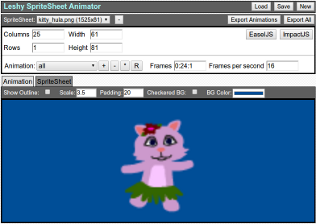
Leshy SpriteSheet Animator has been updated to support exporting
animations for
CreateJS / EaselJS
and
ImpactJS.
This new update also fixes a few issues and cleans up some
inconsistencies within the program and the save file formats. Old
save file formats should still be compatible.
This post will discuss the new export features for ImpactJS and
CreateJS and how to use them. It will also provide some
documentation for the JSON file formats.
If you are new to Leshy Sprite Sheet Animator, please take a look at
the
blog
post where it was introduced. You can also try it out with a
demo sprite
sheet
here.New Exporters
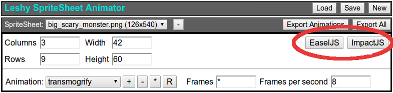
In order to make this tool more useful for others I added exporters
for CreateJS and ImpactJS. With each of these there is no one right
way of producing the output format. I tried to choose a single
clean way that was close to a way suggested in the
documentation.
When the button is pushed for one of these, the current sprite sheet
and all of its animations are converted to the requested format. A
pop-up appears with an editable text area. Modifications may be
made to the text there, and then it can be saved to a file, or just
copy and pasted out of there.
Adding more formats is relatively easy. If there is another format
that a large number of people would benefit from having supported,
please suggest it in the comments below, and provide a link to the
documentation or examples of how this would look.
CreateJS
The CreateJS exporter follows an example found in the
SpriteSheet
Class documentation. Frame lists are always written out in the
long form, and the image asset is assumed to be in the current directory.
An issue I found with CreateJS is that it doesn't support specifying
the speed for animations. There is a "frequency" parameter, but
that seems to indicate how many ticks to show each frame. This
means that the FPS setting of the Ticker will effect the correct
frequency. In order to deal with this I added a "Ticker FPS" text
input so that the FPS can be specified and the frequency can be
correctly calculated. Clicking the "Apply" button will recreate all
text with the new frequencies.
Another complication with CreateJS is that the frequencies have to be
whole numbers. This means the granularity of possible speeds to
express is limited, and at lower frame rates it is just not possible
to specify speeds with much accuracy. The frequency values are
rounded to the closest possible value for the Ticker FPS.
CreateJS users should be aware that animations will not necessarily
run at the correct speed, even with this technique. If you specify
60 FPS and there is a frequency of 1, you may expect your animation
to run at 60 FPS, but that will only be true so long as the user is
really getting 60 FPS. If over one second they only can render 45
frames, then the animation will slow down. There are ways to work
around and fix this, but they go beyond the scope of this post.
I am not experienced with CreateJS. If anyone has any feedback on my
observations, or ideas on how this can be better handled in this
application, please let me know.
Sample CreateJS OutputHere is sample output for
the
demo
"kitty_hula.png" at 60 frames per second:
var data = {
     images: [ "kitty_hula.png" ],
     frames: { width: 61, height: 81 },
     animations: {
          "all": { frames: [ 0, 1, 2, 3, 4, 5, 6, 7, 8, 9, 10, 11, 12, 13, 14, 15, 16, 17, 18, 19, 20, 21, 22, 23, 24, 23, 22, 21, 20, 19, 18, 17, 16, 15, 14, 13, 12, 11, 10, 9, 8, 7, 6, 5, 4, 3, 2, 1 ], frequency: 4 },
          "point_left": { frames: [ 15, 16, 17, 18, 19, 18, 17, 16 ], frequency: 10 },
          "wobble": { frames: [ 0, 1, 2, 3, 4, 3, 2, 1 ], frequency: 8 },
          "point_right": { frames: [ 21, 22, 23, 24, 23, 22 ], frequency: 10 }
     }
};

var spriteSheet = new createjs.SpriteSheet(data);
var animation = new createjs.BitmapAnimation(spriteSheet);
Example CreateJS UsageHere is a working example that shows how this may be used. Please
look at this as an example of how this may be done, and not
necessarily an example of how it should be done within your
application or game.
function init() {
    // ***** This is the beginning of the generated code
    // ***** from Leshy SpriteSheet Animator
    var data = {
        images: [ "kitty_hula.png" ],
        frames: { width: 61, height: 81 },
        animations: {
            "all": { frames: [ 0, 1, 2, 3, 4, 5, 6, 7, 8, 9, 10, 11, 12, 13, 14, 15, 16, 17, 18, 19, 20, 21, 22, 23, 24, 23, 22, 21, 20, 19, 18, 17, 16, 15, 14, 13, 12, 11, 10, 9, 8, 7, 6, 5, 4, 3, 2, 1 ], frequency: 4
 },
            "point_left": { frames: [ 15, 16, 17, 18, 19, 18, 17, 16 ], frequency: 10 },
            "wobble": { frames: [ 0, 1, 2, 3, 4, 3, 2, 1 ], frequency: 8 },
            "point_right": { frames: [ 21, 22, 23, 24, 23, 22 ], frequency: 10 }
        }
    };

    var spriteSheet = new createjs.SpriteSheet(data);
    var animation = new createjs.BitmapAnimation(spriteSheet);

    // ***** Everything below this point is demo code

    // Create a stage using a canvas already on the page with the id "canvas"
    var stage = new createjs.Stage("canvas");

    animation.gotoAndPlay("all"); // Run the default animation
    stage.addChild(animation); // Add the animation to the stage

    createjs.Ticker.useRAF = true; // Use request animation frame

    // Set the framerate to 60.  This must match the animation's
    // export in order for the speeds to be correct
    createjs.Ticker.setFPS(60);

    createjs.Ticker.addEventListener("tick", function () { // Every tick, update the stage
        stage.update();
    });
}

window.onload = init;
ImpactJS
The ImpactJS exporter uses
the
animation
documentation as a guide. The image asset is assumed to be in
the current directory.
It appears that in ImpactJS, animations are returned as objects, and
there is no default storage of them, unlike in CreateJS. To work
around this, the exporter creates an "animations" object where each
key is the name of an animation, and each value is the associated
animation object. So, with the export, if you have an animation
named "walk", you would access it with "animations['walk']".
Animation names are specified as strings. I have done this so that
(as long as usage is consistent) there are no issues with minifiers
that could arise in some situations, such as if the animations are
used as external data.
The animation speeds in ImpactJS are specified as time per frame in
seconds. The exporter rounds this out to 4 decimal places.
I don't have a license for ImpactJS, so this is all untested, and I
don't have a working example. It follows the documentation, so I'd
expect it to work. If anyone with a license can verify this works,
I would appreciate it.
UPDATE: The ImpactJS exporter now also supports the
animation-importer
plugin for ImpactJS. This export format makes it possible to
drop in the exported animations without making any other changes.
For more details, see
the
blog
post about this update.Sample ImpactJS Outputvar animSheet = new ig.AnimationSheet("kitty_hula.png", 61, 81);
var animations = {
"all": new ig.Animation(animSheet, 0.0625, [ 0, 1, 2, 3, 4, 5, 6, 7, 8, 9, 10, 11, 12, 13, 14, 15, 16, 17, 18, 19, 20, 21, 22, 23, 24, 23, 22, 21, 20, 19, 18, 17, 16, 15, 14, 13, 12, 11, 10, 9, 8, 7, 6, 5, 4, 3, 2, 1 ]),
"point_left": new ig.Animation(animSheet, 0.1667, [ 15, 16, 17, 18, 19, 18, 17, 16 ]),
"wobble": new ig.Animation(animSheet, 0.125, [ 0, 1, 2, 3, 4, 3, 2, 1 ]),
"point_right": new ig.Animation(animSheet, 0.1667, [ 21, 22, 23, 24, 23, 22 ])
};Standard Export JSON Formats
There are two types of JSON files that can be exported and imported
into this program. There are animation files that contain a sprite
sheet and all of its animations. These are created from the "Export
Animations" button. There also are project files that include the
full state of the application including all sprite sheets,
animations, images, and settings. These are used for saving and
loading the state, and they are created with the "Export All"
button.
Animation JSON Files
Example file:{
"note": "Leshy Sprite Sheet Animator v1.0.1",
"type": "lss_animations",
"animations": {
"all": {
"frames": "0:24:1",
"fps": 16
},
"point_left": {
"frames": "15:19:16",
"fps": 6
},
"wobble": {
"frames": "0:4:1",
"fps": 8
},
"point_right": {
"frames": "21:24:22",
"fps": 6
}
},
"height": 81,
"width": 61
}Animation JSON File Reference:| Name | Type | Description |
| note | String | This is an string containing the application name and
version. If the format changes in future versions, this
string could help provide for backwards compatibility.
The string for the current version is "Leshy SpriteSheet
Animator v1.0.1" |
| type | String | This is an identifier of the type of file. When a JSON
file is dropped into the application, it looks at this to
decide what to do with it. Animation files use the type
"lss_animations". |
| animations | Object | This is an object where each key is the name of
animation, and each value is another object with a parameter
for "frames" and "fps". For details, see
the "Animation Object"
section below. |
| height | Number | The height of each frame in the sprite sheet, in pixels.
The number of rows will automatically be determined based on
this number and the image size. |
| width | Number | The width of each frame in the sprite sheet, in pixels.
The number of columns will automatically be determined based
on this number and the image size. |
| Name | Type | Description |
| Frames | String | This is the frame list. For a full reference to
the legal values here,
see the
initial blog post. |
| FPS | Number | The number of frames per second for the animation
to run at. This determines the amount of time each
frame is shown before switching to the next frame. 1
/ FPS = Time per frame in seconds. |
Project JSON Files
Example File:{
"note": "Leshy Sprite Sheet Animator v1.0.1",
"type": "lss_spriteSheets",
"animationShowOutline": false,
"animationShowBackground": false,
"animationColor": "#004e97",
"animationPadding": 20,
"animationScale": 3.5,
"spriteSheetShowOutline": true,
"spriteSheetShowLabels": true,
"spriteSheetShowBackground": false,
"spriteSheetBackgroundColor": "#ffffff",
"currentSpriteSheet": "kitty_hula.png",
"currentTab": "animation",
"spriteSheets": {
"kitty_hula.png": {
"animations": {
"all": {
"frames": "0:24:1",
"fps": 16
},
"point_left": {
"frames": "15:19:16",
"fps": 6
},
"wobble": {
"frames": "0:4:1",
"fps": 8
},
"point_right": {
"frames": "21:24:22",
"fps": 6
}
},
"height": 81,
"width": 61,
"img": "data:image\/png;base64,iVBOR...[base64.image.file]...",
"currentAnimation": "all"
},
"fire.png": {
"animations": {
"normal": {
"frames": "*",
"fps": 20
},
"slow": {
"frames": "*",
"fps": 8
},
"reverse": {
"frames": "*:0",
"fps": 20
}
},
"height": 96,
"width": 48,
"img": "data:image\/png;base64,iVBOR...[base64.image.file]...",
"currentAnimation": "normal"
}
}
}Project JSON File Reference:| Name | Type | Description |
| note | String | This is an string containing the application name and
version. If the format changes in future versions, this
string could help provide for backwards compatibility.
The string for the current version is "Leshy SpriteSheet
Animator v1.0" |
| type | String | This is an identifier of the type of file. When a JSON
file is dropped into the application, it looks at this to
decide what to do with it. The string for project files
is "lss_spriteSheets" |
| animationShowOutline | Boolean | This is the "Show Outline" setting in the "Animation"
tab. When true, an outline is drawn around the rendered
frame. |
| animationShowBackground | Boolean | This is the "Checkered BG" setting in the "Animation"
tab. When false, a checkered background is drawn. When
true, a solid color background is drawn using the color from
the "animationColor" attribute. |
| animationColor | Color String | This is the "BG Color" setting in the "Animation" tab.
When the "animationShowBackground" attribute is false, this
determines the color to be used for drawing a solid color
background. |
| animationPadding | Number | This is the "Padding" setting in the "Animation" tab.
It specifies the minimum allowed vertical padding in
pixels. |
| animationScale | Number | This is the "Scale" setting in the "Animation" tab. It
specifies how much to scale the animation preview. It is a
multiplier against the default size, so 1 is 100%, 2 is
200%, and 0.5 would be 50%. |
| spriteSheetShowOutline | Boolean | This is the "Show Outline" setting in the "SpriteSheet"
tab. When true, an outline is drawn around each frame when
viewing the sprite sheet. |
| spriteSheetShowLabels | Boolean | This is the "Show Labels" setting in the "SpriteSheet"
tab. When true, frame labels are drawn for each frame
showing the frames numeric and grid coordinates. |
| spriteSheetShowBackground | Number | This is the "Checkered BG" setting in the "SpriteSheet"
tab. When false, a checkered background is drawn behind the
sprite sheet. When true, a solid color is drawn in the
color specified by the "spriteSheetShowBackgroundColor"
attribute. |
| spriteSheetShowBackgroundColor | Color String | This is the "BG Color" setting in the "SpriteSheet" tab.
When "spriteSheetShowBackground" is true, a solid color
background is drawn using this color. |
| currentSpriteSheet | String | This is the name of the sprite sheet to be loaded when
this file is opened. |
| currentTab | String | This is the name of the current tab to have open when
this file is opened. It can be either "Animation" or
"SpriteSheet". |
| spriteSheets | Object | This object contains a key for each sprite sheet. The
key is the name of the file, and the value is an object that
is very similar to the Animation
JSON File. That object contains a list of animations
along with their framelist and speed, as well as size
information. There are two additional fields not found in a
normal Animation JSON File:
img - This is a base 64 encoded data uri of the image file.
currentAnimation - This contains the name of the current
animation, so that the application knows which animation to
default to when the sprite sheet is opened. |