Demo Mode
A demo mode is provided that loads a sample sprite sheet with
various animations. This is done so that people can easily
understand what the program does without requiring them to have a
sprite sheet handy.
The demo mode is accessed automatically when the URL ends with
"#demo". If you don't want demo mode to be entered on start-up,
just remove the "#demo" text from the end of the URL and reload the
page. Here is a
link
with and
another
without demo
mode.
Drag & Drop
To add a sprite sheet, a PNG file may be dragged and dropped onto the
page. Files may be dragged from a file manager or any other program
that allows it (including some image viewers.) If multiple image
files are dragged and dropped at once, they will all be added. If a
PNG file is dropped that has the same name as a defined sprite
sheet, the image will be replaced, but everything else will remain
the same. It may be required the file extensions to be correct
in order for drag and drop to function properly.
Size Settings
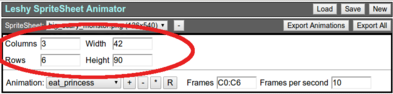
A sprite sheet must be made up of a grid of frames, and each frame
must be the same size. In order to properly show the frames, the
correct frame size must be specified. This can be done either by
specifying the number of rows and columns, or by specifying the
width and height of a frame.
It is assumed that a proper value here would be a whole number. If
any of these inputs results in a decimal, everything will work
according to that number, but the field will be highlighted in red
as a warning.
SpriteSheet Controls
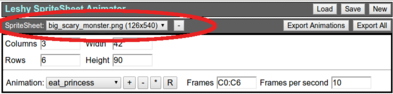
SpriteSheetThis pull down list shows all available sprite sheets. A sprite
sheet's name is its file name. Sprite sheets are added by
dragging and dropping PNG files onto the page.
'-' ButtonThis button removes the current sprite sheet. When a sprite
sheet is removed all settings and animations associated with the
file are removed as well. It is not possible to undo a sprite
sheet removal.
Animation Controls
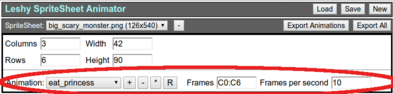
AnimationEach sprite sheet can contain multiple animations. This pull-down
list allows you to select the activate animation that is
displayed. Every animation has a setting for "Frames" and "Frames
per second".
When a new sprite sheet is added a "Default" animation is created
that shows all frames at 8 frames per second.
'+' ButtonThis button adds a new animation. On pressing it a prompt
appears for a the name of the animation. All animations are
required to have unique names within each sprite sheet.
'-' ButtonThis is used to remove the current animation. Once an
animation is deleted there is no way to restore it.
'*' ButtonThis is used to copy animations from another sprite sheet into
the current one, which is very useful when two sprite sheets
should have the same or overlapping animations. Animations are
added in, and any current animations that do not overlap are
unaffected. Any with the same name are overwritten.
When pressed this prompts for the name of the sprite sheet to
copy from. Partial names are allowed, so long as they only
can possibly refer to only one other sprite sheet.
For example, lets say we have 3 sprite sheets.
"BigScaryMonster", "LittleScaryMonster", and "BigBurritoMonster".
If our current sprite sheet is "LittleScaryMonster" and we want
to copy all the animations from "BigScaryMonster" this can be
done by entering "BigS". Just "Big" may refer to either of the
other sprite sheets, but "BigS" only can refer to
"BigScaryMonster", and so it is valid.
'R' ButtonThe 'R' button is used to rename the current sprite sheet. After
pressed, it will prompt for the new name. The new animation name
must be unique within the sprite sheet.
FramesThis is the list of frames to render. In its most basic form
it can be a comma delimited list of numbers. For more advanced
usage, see the section found
below,
"Specifying animation frames."If a frame list is specified that results in no frames, this
will be highlighted in red. This often indicates that there
is something wrong with the frame list, such as an illegal
character.
The value here determines the number of frames per second for
the animation. Every animation can have its own settings,
which is sometimes useful, such as in a situation where running
is the same as walking, only faster.
Animation Tab Controls

Show OutlineWhen enabled, this will draw an outline around the frame being
drawn. This is useful for seeing the limit of the frame size,
especially in situations where it also acts as a collision box.
ScaleThis is the scale multiplier. By default it draws at a scale
of 1, meaning the actual size or 100%. Values greater than 1
can increase the size at which the frames are drawn, and smaller
values can decrease it. For example, 3 would make it draw at
300%, and .5 would make it draw at 50% of the
actual size.
The scaling method used will be whatever a browser defaults to.
Controlling the scaling method is currently inconsistent from
browser to browser, but in the future it may be possible to
force a particular scaling method.
PaddingThe "Padding" setting determines the minimum allowed vertical
padding on the canvas when drawing the animation frames.
Checkered BGIf this is checked instead of drawing a solid color, a checkered
background will be drawn.
BG ColorThis determines the background color to draw. This only takes
effect if "Checkered BG" is not enabled.
SpriteSheet Tab Controls

The sprite sheet tab shows the sprite sheet being used to generate
the animations.
Show OutlineWhen enabled, this draws lines around the edges of each frame so
that it is clear where the borders are located.
Show LabelsWhen enabled, this draws the frame identifiers onto each frame.
The numeric identifier is shown in the upper left corner of each
frame, and the grid identifier is shown in the lower left
corner of each.
On very small sprite sheets the font may be too large and make
this unreadable.
Checkered BGWhen this is checked, instead of drawing a solid background
color behind the sprite sheet, a checkered background will be
drawn.
BG ColorThis determines the background color to draw. This only takes
effect if "Checkered BG" is not enabled.
Animation frames may be specified in a number of different ways.
They can be referred to numerically (1, 8, 12) or as grid
coordinates (A2, C8, D11). They may also be specified as ranges.
A comma delimited list of any of these may be created to specify
animations. Examples will be provided below.
A frame may repeat and appear any number of times in an animation.
If a frame appears more than one time in a row it will continue to
be played for the number of times it repeats. If a non existent
frame is referred to, nothing will be rendered during the time that
frame should be drawn. Spaces are allowed between identifiers and
commas for readability, and they will have no effect.
| Frame Identifiers |
| Numeric | 0
6
13 | A whole number indicates the position of the frame starting
at the upper left corner of the sprite sheet, and moving
to the right through each row. The first frame is 0. |
| Grid | A1
C4
G12 | A capital letter followed by a number can be used to refer
to a frame as a grid coordinate. The letter refers to the row,
and the number the column. The grid coordinates can not be
used to refer to any frame beyond the 26th row. Grid and
numeric identifiers may be used interchangeably. |
| Last Frame | * | A star (*) always refers to the last frame in the sprite sheet. |
| Ranges |
| Simple Range | 0-8
8:0
A1-A5
A1:22
0:* | A range may be specified by including any two frame
identifiers separated by either a colon (:) or a dash (-).
These symbols have identical meanings, so you should probably
choose whichever you prefer and use only that. Ranges can be in
forward or reverse order. |
| Multi-stop Range | 0:*:1
9-2-5-1
A3:A9:A4 | A multi-stop range can be used to specify ranges that
include multiple "turns" in direction. For example, 0:3:1
would indicate to start go from 0 to 3 and back to 1. That
would become 0,1,2,3,2,1. If instead you put 0:3:0 it would
become 0,1,2,3,2,1,0, and the first frame (frame 0) would be
shown twice in a row while looping. A multi-stop range may
have any number of stops. |
| Examples |
| 0,1,2 | Display frames 0, 1, and then 2. Since we start the
numbering at 0, this refers to the first, second and third
frames. If the animation is looping, after frame 2 it will
return back to 0. |
| 0:2 | This defines a range of frames from 0 to 2, and will create
the same exact animation as the above example. |
| A0,A1,A2 | This is also the same as above, but done specifying grid
coordinates. The letter 'A' refers to the first row, and then
0, 1, and 2 refer to the first, second, and third frames in
that row. The only time this would give a different result is
if there were less than 3 columns per row. |
| 0:*:1 | Go from the first frame to the last frame and then back to
the second frame (frame 1). We stop at the second frame so that
when it loops the first frame gets shown only once. |
| 0:4, 8, 12, 4:0 | This will go from frames 0 to 4, then show frame 8 followed
by twelve. Next, it will go back from 4 to 0. If the animation
is looping, the first frame (the 0 frame) will be played twice
in a row, since it appears at the beginning and end. Changing
the last part from 4:0 to 4:1 would remedy that. |
Save Files
There are two types of JSON files that can be created. Either of
these files can be dragged and dropped on to the page in order to
load the files back. The file formats were created for internal and
unreleased game engine, but the formats are simple, and adding
support to another engine should be fairly trivial.
Updated June 16, 2013: For details of the JSON formats,
see here.Export AnimationThis button will save the current sprite sheet into a JSON
format. This includes the size of the sprite sheet and all
animations.
If this file is dropped onto the application when a sprite sheet
is loaded, the animations for the current sprite will be replaced
with the animations from the file.
Export AllThis creates a save file including all sprite sheets and
animations. The images are also included in the JSON, making the
file size fairly large.
If this file is dropped onto the application any open projects
will be closed and the project listed in the save file will be
loaded.
LocalStorage
It is possible to save the project files into local storage. While
this works and can be very convenient, it is highly recommended that
the project regularly be exported to a file for backups in case the
browser decides to clear localStorage or it gets otherwise
overwritten.
The can only be one project saved into locaStorage at a time.
This project can have any number of sprite sheets and
animations.
If the size of the save file is too large there is larger than
the browsers limit for localStorage, then there is the possibility
of data loss. The application will attempt to detect this and
warn if there is an issue, but to be sure there are no problems,
keep backups as external files.
NOTE: It is recommended to use the "Export Animations" save
files for backups over the ones generated with "Export All." The
"All" ones include the images, and when they are large some
browsers may get picky about allowing them to be reloaded which
can make it impossible to restore the save file. The "Export
Animations" save files do not suffer from this problem.
LoadWhen pressed, this button will load the save file stored in
localStorage. All current sprite sheets and animations will be
removed in the loading process.
SaveThis button saves the current project including all sprite
sheets, animations, and settings into localStorage.
NewWhen pressed this button will remove all sprite sheets,
animations, and settings. This restores everything to the
default state, as if the page had just loaded in non-demo mode.
Drag and Drop on Linux with Firefox & XFCEWhen I first tested with Firefox I was confused to find that drag
and drop just wouldn't work. It turns out this is a known issue
in Firefox dating back to November of 2010. It looks like a fix
is coming soon. For more details,
see
Bug
609284.While dragging from image viewers and Thunar does not currently
work in Firefox, an easy work around is to use a file manager from
a different window manager. For example, using
KDE's
Dolphin File Manager
will work properly. Another solution is to use Google Chrome.
Extremely large sprite sheet files cause issues in Chrome. I
haven't searched for bug reports, but from what I can tell it
seems like if the dimensions of the canvas are over a certain
amount the canvas doesn't render. No errors are reported, but
the canvas does not display.
When this situation occurs the "SpriteSheet" tab will not render.
The animation will still render properly, since that occurs on a
much smaller canvas. Firefox does not seem to suffer from this
issue.
If you encounter any problems using this software, please post a
detailed response in the comments of this page explaining how to
recreate the issue along with your browser and version. A link to a
sample sprite sheet could be helpful as well.
I have tested this primarily in Chrome, but also performed light
testing on Firefox and Opera. Since HTML5 features are used, a
recent version of these browsers may be required. Due to a lack of
easy availability and interest, IE is untested and likely won't
work. Chrome is highly recommended.
This is commercial software and it may not be redistributed. The
source code is closed and due to reliance on proprietary game engine
code, will likely remain that way. It is currently made available
for usage on LeshyLabs.com with no warranty. For more details,
please see our
Legal Notices page.